Control the Compleo SOLO with an app: free with Monta or eCarUp
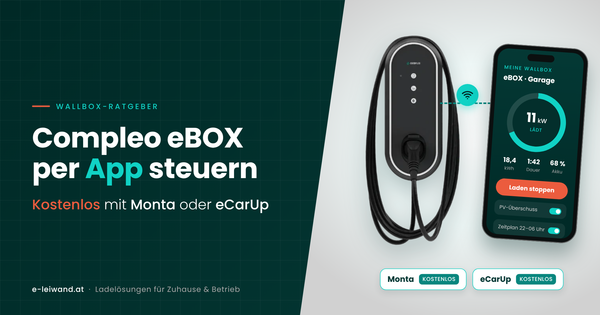
With the Monta or eCarUp app, you can conveniently control your Compleo SOLO from your smartphone – free of charge and directly via OCPP. You start and stop charging sessions via the app, see your consumption and, if needed, give family or guests access to the wallbox. Both apps are available in the Google Play Store and the Apple App Store. The connection is set up once in the browser via the DUCTO interface, ideally right at commissioning. In this article, we show how the apps differ and which values to enter.
Key points at a glance
- Monta and eCarUp are free for home charging and available for Android and iPhone.
- Compleo lists both in its overview of compatible backends for the SOLO (as of December 2025).
- The SOLO needs internet access via LAN for this. Only if LAN is not possible does it connect via the built-in 4G modem with a SIM card. It has no Wi-Fi.
Contents
- What an app adds to your wallbox
- Monta or eCarUp: the comparison
- What you need
- Logging in to DUCTO
- Connecting the SOLO to Monta
- Connecting the SOLO to eCarUp
- Charging via app in everyday life
- What does it cost?
- Conclusion
- Frequently asked questions
What an app adds to your wallbox
Without a backend, the SOLO either starts charging as soon as you plug in the car or after authorisation with an RFID card from the local list, depending on its settings. That works, but you have no access from the sofa or when you are out and about. With an app, you are in control of your wallbox:
- Start and stop charging – even when you are on the go.
- Keep an eye on consumption – kWh charged per session, right on your smartphone.
- Control access – only you charge, or you give family or guests access in a targeted way, via the app or RFID card.
- Status from anywhere – see the status and charging history without logging in to DUCTO on a laptop.
Monta or eCarUp: the comparison
Both apps speak OCPP, the open standard between wallbox and backend. The differences lie in their focus:
| Monta | eCarUp | |
|---|---|---|
| Origin | Denmark | Switzerland |
| Cost at home | free | free (Free version) |
| Strength | home charging, smart charging based on electricity price | sharing and user management |
| Statistics | kWh, costs, CO₂ in the app | live status and consumption; detailed statistics in Premium |
| Sharing with others | teams for family, friends, guests | user management, prices, opening hours |
| Station setup | in the app | in the web portal admin.ecarup.com |
| Available for | Android and iPhone | Android and iPhone |
Rule of thumb: if you mainly charge yourself at home, Monta is the simpler choice. If you want to decide who may charge and when, eCarUp plays to its strengths.
What you need
- A Compleo SOLO with an internet connection via LAN cable to your router. You only need a SIM card for the built-in 4G modem if a LAN connection is not possible. The SOLO has no Wi-Fi.
- The DUCTO password from the DUCTO sticker inside the station.
- The serial number of your SOLO from the serial label – it serves as the ChargeBoxIdentity.
- A laptop with a LAN port and administrator rights.
- The Monta or eCarUp app and a free account.
Tip: plan the app connection right at commissioning. The station is open then, the network cable is connected and your electrician is on site. Have the DUCTO password noted down for you.
Logging in to DUCTO
DUCTO is the configuration interface of the SOLO. It runs directly on the wallbox, so all you need is a browser. There is no separate manufacturer app for this.
Important: the network port and the DUCTO sticker are inside the housing. Only a qualified electrician may open the station.
- Connect the laptop: connect the laptop to an Ethernet port on the circuit board with a network cable.
- Set the laptop's IP address: in the network settings under IPv4, assign a fixed address, for example
192.168.1.99with the subnet mask255.255.255.0. The address192.168.1.100belongs to the wallbox. - Open DUCTO: enter
https://192.168.1.100in the browser and confirm the security warning via "Advanced". - Log in: click Login on the left and enter the password from the DUCTO sticker. The normal operator login is sufficient for the app connection; you do not need to tick "Login as electrician".
- Back up the configuration: save the current configuration under Backup & restore. The SOLO has no factory reset, so this file is your safety net.
Good to know: DUCTO logs you out automatically after 10 minutes, so it is best to save changes straight away with Apply.
Connecting the SOLO to Monta
For Compleo, Monta's guide specifies the backend address and the serial number as the ChargeBoxIdentity. You enter these values for the SOLO in DUCTO.
Preparation
- Install the free "Monta Charge" app from the Google Play Store or Apple App Store and create an account. There are no subscription costs for private individuals.
- Note the serial number from the serial label of the SOLO.
Setup
- Set up the backend connection: under Settings → Backend, set the operating mode to
Onlineand enter under Connection:- Backend URL:
wss://ocpp.monta.app - ChargeBoxIdentity: the serial number of your SOLO
- Backend URL:
- Configure the network: under Settings → Network, enable "Obtain an IP address automatically". Only if LAN is not possible, select "Activate modem" instead and enter the APN of your SIM card.
- Apply and restart: save the changes with Apply and restart the SOLO. This takes about a minute. With an automatic IP address, the wallbox is then reachable at a new address, which you can find in your router.
- Check the connection: at the new address, the DUCTO dashboard shows whether the backend connection is established.
- Add the wallbox in the app: in the Monta app, choose to add your own charging station, search for the serial number and follow the instructions. Alternatively, you can do this on a computer via the Monta Hub at monta.com.
You can then start and stop charging via the app, see your charging history and give others access to your wallbox via teams.
Important: once connected, Monta takes over control of the charging station. Charging then takes place as you set it in the app. Clarify any questions about tariffs directly with Monta.
Connecting the SOLO to eCarUp
- Install the app: download "eCarUp" from the Google Play Store or Apple App Store and create an account.
- Get your personal OCPP URL: log in to the web portal admin.ecarup.com, open Stations on the left and copy the URL in the OCPP tab. It is linked to your account.
- Enter the connection data: in DUCTO under Settings → Backend, set the operating mode to
Online, paste the copied URL as the backend URL and enter the serial number as the ChargeBoxIdentity. If you use the WSS address with Basic authentication at eCarUp, the password goes into the AuthorizationKey field. - Configure the network: as with Monta under Settings → Network, then Apply and restart.
- Set up the station: as soon as the SOLO communicates with eCarUp for the first time, it appears in your account. In the web portal, you then define the location, users and access.
- Set the parameter: eCarUp requires
StopTransactionOnEVSideDisconnect=trueon every Compleo station. You set this via the eCarUp maintenance tool (Premium) or directly on the station. - Check authorisation: if the station does not work properly after integration, eCarUp advises checking in DUCTO that authentication is switched on and remote is enabled.
eCarUp always recommends a test charge at the end. Incidentally, the same applies to Monta. You can find the Compleo guide with a video in the eCarUp wiki.
Charging via app in everyday life
- Start charging: plug in the car, select the wallbox in the app and start the charging session.
- Stop charging: stop in the app or end the charging session at the car.
- Check consumption: every charging session is saved with kWh and duration.
- Let others charge: add people in the app – they then start charging with their own smartphone. You decide who may charge.
- Keep using RFID: the SOLO has an RFID reader. After the connection, you manage cards in the respective app account.
Important: the SOLO smart has a MID-certified meter but is not compliant with Austrian and German calibration law (Eichrecht). If you bill the kWh charged to different users, an Eichrecht-compliant wallbox is mandatory in Austria as well as in Germany, for example the eBOX professional EKA. In Austria, the same applies if a service provider bills the charging electricity to a third party – for example, reimbursement by your employer of the kWh charged at home. In Germany, MID is usually sufficient for company car reimbursement; some employers or service providers nevertheless require Eichrecht compliance. We explain which version is suitable when in Compleo eBOX versions compared.
What does it cost?
- Monta: the app is free for home charging, with no subscription. If you make the wallbox available to others for a fee, Monta currently retains a 10% transaction fee in the free plan.
- eCarUp: the Free version costs nothing and covers prices, opening hours, live status and simple user management. If you want reports, statistics or maintenance functions, you can switch to Premium. For paid charging sessions, eCarUp currently retains a 10% commission.
If your electrician has to open the station for this, their costs are added; without LAN, so are the costs of the SIM card.
As of: November 2026. Conditions may change – you can find current prices directly from Monta and eCarUp.
Conclusion
With Monta or eCarUp, you get more out of your Compleo SOLO free of charge: charging via app, consumption at a glance and full control over who charges. Setup is done once via DUCTO and fits best at commissioning. For your own car at home, Monta is the quickest solution; for sharing with user management, eCarUp.
Frequently asked questions
Does this also work without a LAN cable?
Yes, via the built-in 4G modem with a SIM card. You only need the SIM if a LAN connection is not possible. The SOLO has no Wi-Fi.
Do I need an app at all?
No. The SOLO also charges without a backend, either freely or with RFID cards from the local list. You can view charging data in DUCTO and export it as a file. The app is worthwhile if you want to start charging by smartphone and have access when you are out and about.
Can I switch between Monta and eCarUp?
Yes. Simply enter the other provider's data under Settings → Backend. The SOLO is always connected to exactly one backend.
The SOLO does not appear in the app.
Check the backend connection in the DUCTO dashboard and whether the operating mode is set to Online, and compare the backend URL and ChargeBoxIdentity character by character. With LAN, the router must have internet access; with mobile data, the modem and APN must be correct. Changes only take effect after a restart.
I can no longer get into DUCTO.
After switching to an automatic IP address, the SOLO has a new address, which you can find in your router. Compleo customer service can help with a forgotten password if you give them the serial number, or you can write to us.
I need help with the setup.
A personal setup appointment can be booked as an option. Send us your request with the serial number of your SOLO to service@ampion.at.
Matching products
- Compleo SOLO smart cable – with 6.5 m spiral cable
- Compleo SOLO smart socket – with Type 2 socket
- Compleo eBOX professional socket EKA – compliant with Austrian and German calibration law (Eichrecht)